
There are two different Google integrations that you can use in Ravetree:
- Google Drive
- Google Calendar
You can enable both, or only one of them. Once enabled, each member can decide which ones they want to use. This is done of the My Settings page.
Google Drive
The Google Drive integration gives users the option to attach files from your shared Google Drive. This is in addition to our "regular" Google Drive upload option, which does not require enabling the Google integration.
Google Calendar
This integration provides users with a two-way sync between your Google Calendar and Ravetree Calendar. It will pull in events from Google Calendar and add them to your Ravetree calendar. Likewise, any events created on your Ravetree calendar will get pushed to your Google Calendar. We emphasized the word events because the integration does not push work items over to your Google Calendar—only events.
Enabling The Google Integration
As a G-Suite Administrator, you MUST first add Ravetree to your "Trusted Applications" list. In order to use any of our Google integrations, you must be white listed on our end as well as yours, and we will need to verify the white list before you can use the Google integration with Ravetree.
1) In your G-Suite Admin section, Click "Security", then "Access and data control", then "API controls". Once you're on that page click on the link that says "MANAGE THIRD-PARTY APP ACCESS".


308071406282-sl9kn5buej9f2r45d80es3h4rnc3jm8h.apps.googleusercontent.com
4) Next, select "Ravetree", then follow the steps shown in the next series of screenshots:


At this point Ravetree has now been added as a trusted application to your organization.

IMPORTANT: Perform the following steps after you have received a reply from Ravetree support that your integration has been enabled. The integration will not work until you have received a response from Ravetree support.
6) Go back into Ravetree. As an Administrator with access to the Admin section, navigate to the Admin -> Connections page and enable the Google integrations you want to use (i.e., Google Calendar and/or Google Drive). This will allow all members in your Ravetree Portal to enable the Google integration:
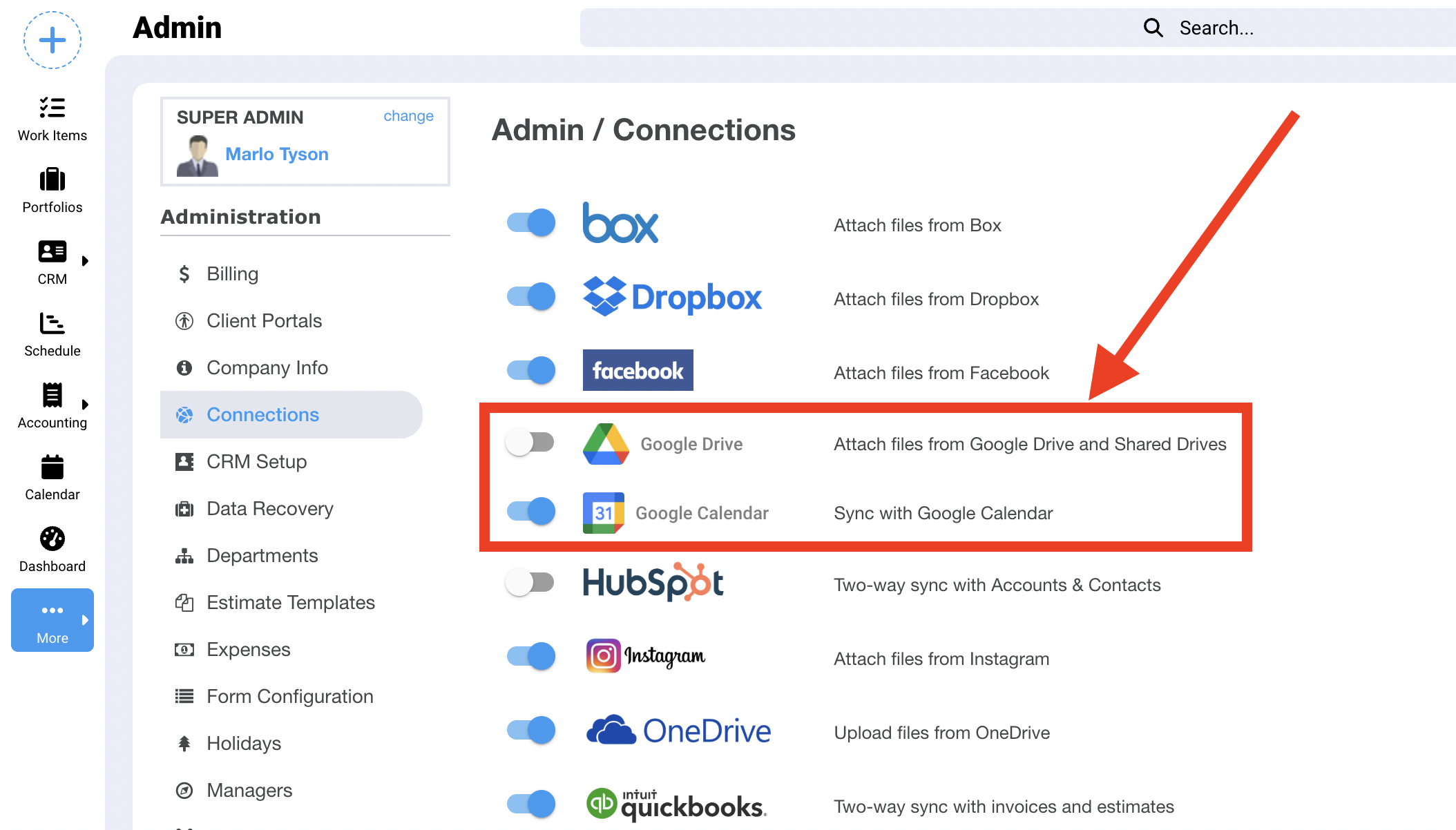
7) Next, each user individually, must then go to their "My Settings" page, by clicking on their User Profile picture in the upper right corner and click "My Settings". Then, click on "Connections" and choose the integration(s) you want to enable. NOTE: You MUST have pop-up blocker disabled in order to continue.

8) A pop-up dialog will appear asking you to allow Ravetree to access your Google Account. Click "Allow".


That's it! Now you're ready to use the Google integration.