
Outlook Calendar
Enabling the integration
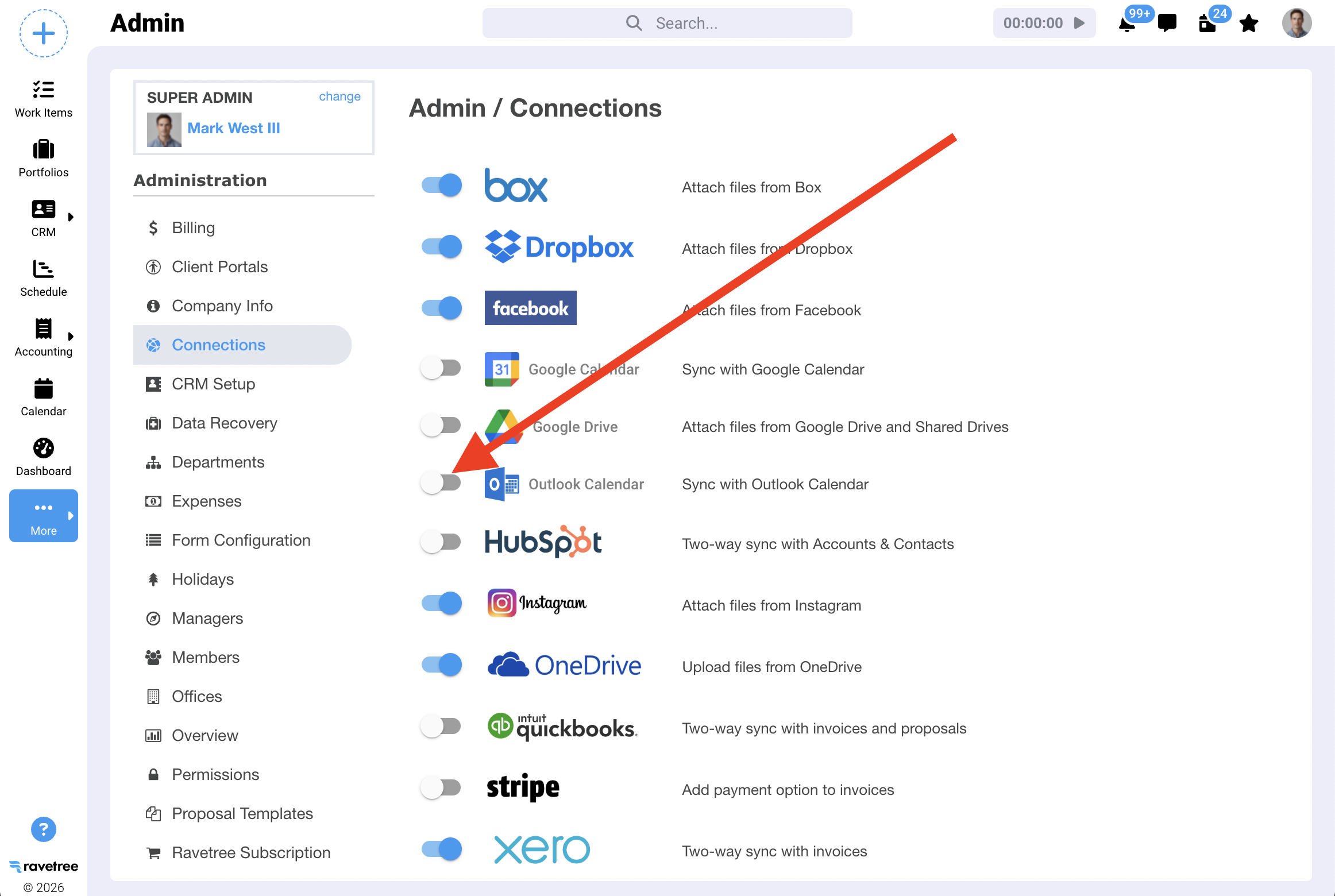
To enable the integration you'll first need to go to the Admin/Connections page in Ravetree. There, you can enable the Outlook Calendar integration by clicking on the switch, as shown below:
Once the integration has been enabled on the Admin page each user will need to go to their My Settings/Connections page to enable the integration for their Outlook Calendar. After enabling the integration on this page you will be presented with an authentication model asking if you agree to the terms of the integration:
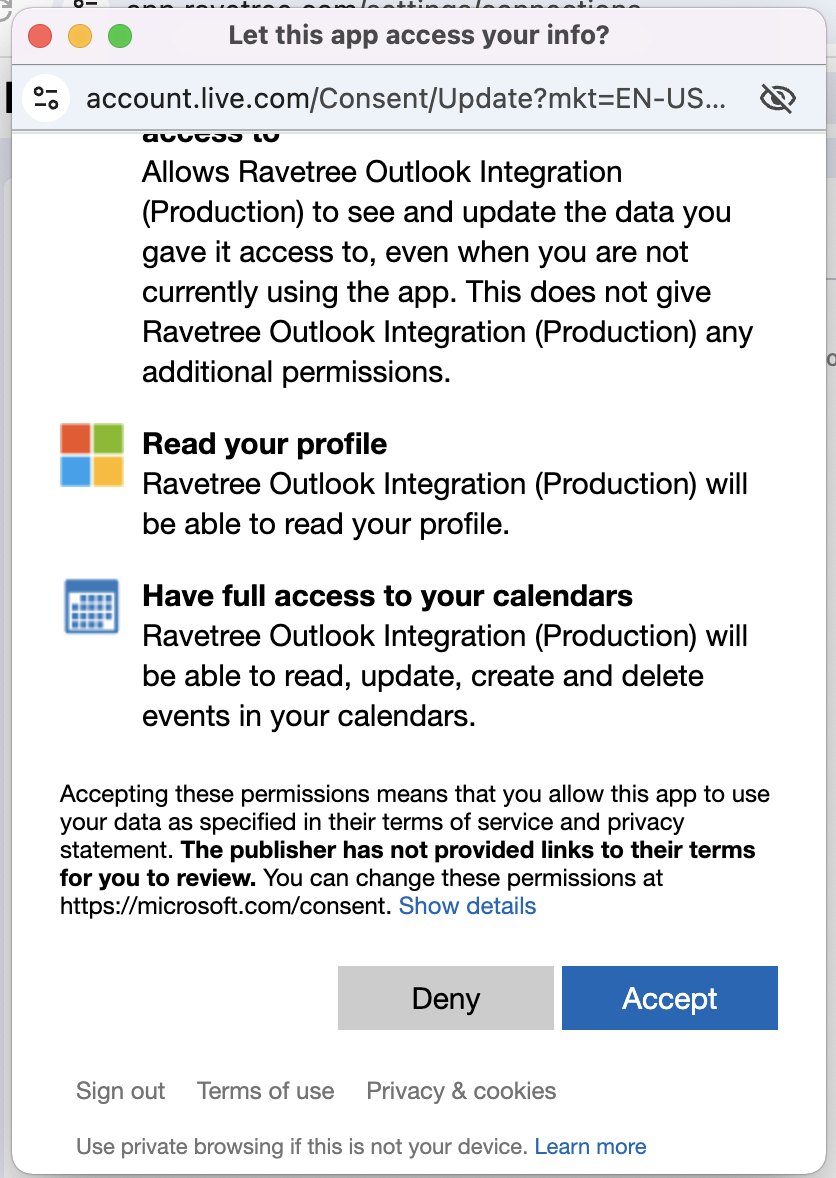
After clicking the "Accept" button the integration will be enabled.
What does the integration do?
The Outlook Calendar integration will enable a two-way sync between events created on your Outlook Calendar and events on your Ravetree Calendar (and vice versa). That is, events created on your Outlook Calendar will automatically show up on your Ravetree Calendar. Likewise, you can create events on your Ravetree Calendar and they will show up on your Outlook Calendar.
Edits made to events will also show up on each calendar.
Events that appear on the Ravetree calendar (even without the integration enabled) will impact your availability on the Schedule page. For example, suppose you have a two hour meeting on Monday, and you normally have an 8 hour work day. Then, the schedule page will show that you now only have 6 hours of availability on that day.
When creating an event on Outlook Calendar, if you invite an attendee whose email address matches that of a contact in Ravetree, then that contact will automatically be linked to the event in Ravetree. Likewise, if the contact is linked to an account, then that account will also be linked to the event.